Using your NABET Local 53 Email with iPhone/iPad
FOR IMAP ACCOUNTS
1.) Open the {Settings} App from the Home Screen. In the {Search} field at the bottom, type "Mail" (without quotes).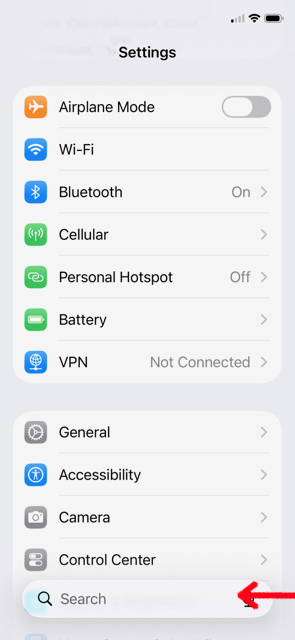
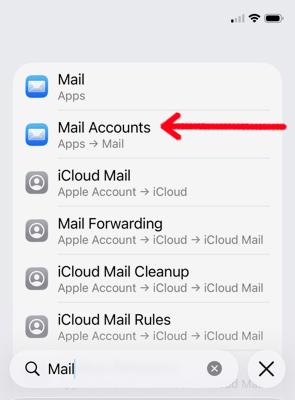
2.) Select {Mail Accounts}
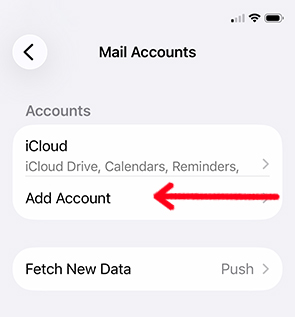
3.) Select {Add Account}
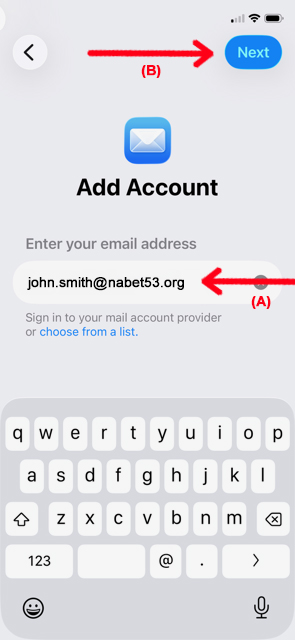
4.) In section (A), type your email address. Then click {Next} (B)
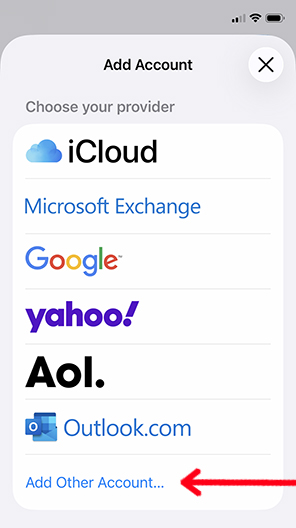
5.) Select {Add Other Account}
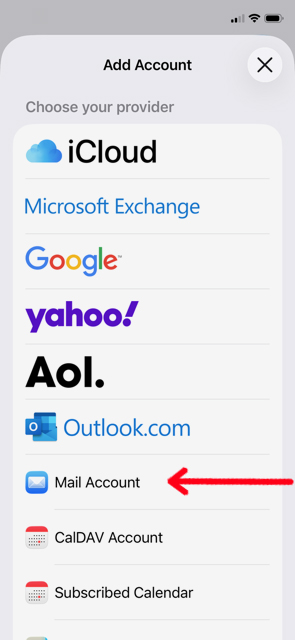
6.) Select {Mail Account}
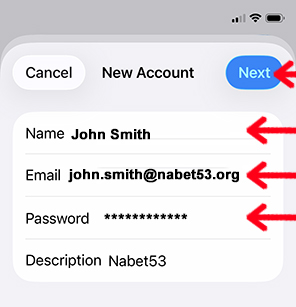
7.) Verify Name and Email Address. Enter your {Password}. Then click {Next}
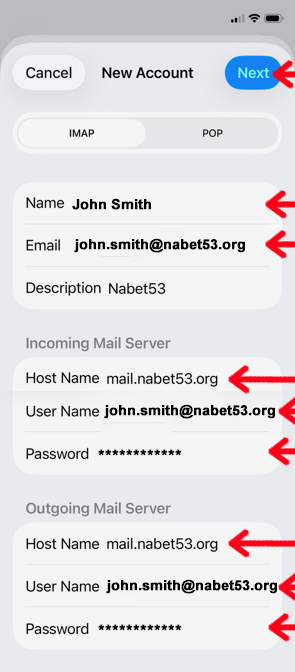
8.) Confirm your Name & Emai Address.
It is important that both Incoming and Outgoing mail server info is provided
Incoming Mail Server:Verify {User Name) and {Password}... If 'stars' appear, then password has been entered from previous steps.
Enter {Host Name} 'mail.nabet53.org' (without quotes)
Outgoing Mail Server:Verify {User Name) and {Password}... If 'stars' appear, then password has been entered from previous steps.
Enter {Host Name} 'mail.nabet53.org' (without quotes)
When all entries are completed and verified, click {Next}. The information entered will be validated. This process may take up to two minutes.
9.) This final step appears after validation is successful. Click {Save}
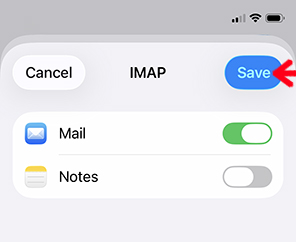
10.) You may now exit from {Settings} and begin using Nabet 53 email.
(If validation finds errors, please go back and review all steps. If still having issues, contact the Nabet 53 office for further instructions.)